

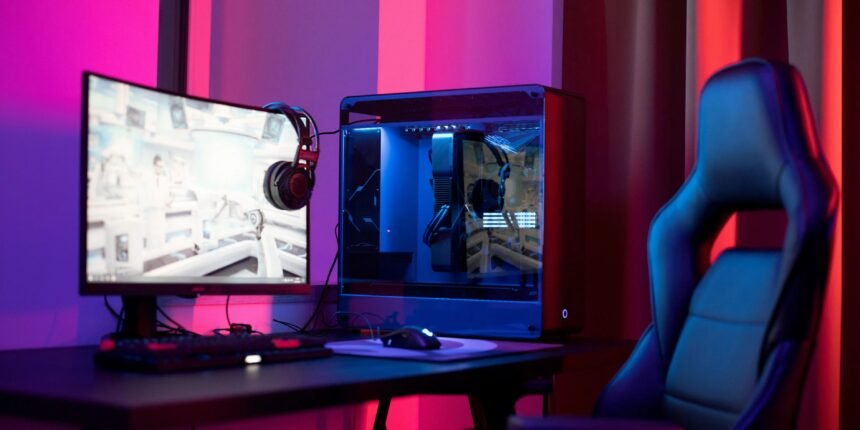
Gaming monitors play an important role in the overall gaming experience. Whether you enjoy competitive games, racing simulations, action adventures, or casual titles, the right monitor can improve visual clarity, responsiveness, and comfort. However, choosing a gaming monitor can be confusing because manufacturers offer different refresh rates, resolutions, panel types, response times, and additional features.
Understanding these specifications helps you select a monitor that suits your gaming needs and budget. Here is a complete guide to the most important gaming monitor features to consider before buying.
1. Refresh Rate: Enjoy Smoother Gameplay
Refresh rate refers to how many times a monitor updates the displayed image per second. It is measured in hertz (Hz). A higher refresh rate can make movement appear smoother, particularly in fast-paced games.
Common gaming monitor refresh rates include:
- 60Hz: Suitable for casual gaming and basic everyday use.
- 144Hz: A popular option for smooth gameplay across many game genres.
- 165Hz: Offers a slightly higher refresh rate for players who want additional smoothness.
- 240Hz: Useful for competitive gaming, especially in fast-paced shooting games.
- 360Hz and above: Designed primarily for competitive players who prioritize extremely high frame rates.
A higher refresh rate is most beneficial when your computer can deliver enough frames per second to take advantage of it. For many gamers, a 144Hz or 165Hz monitor offers a practical balance between performance and price.
2. Resolution: Understand Image Clarity
Resolution determines how many pixels a monitor displays. Higher resolutions can produce sharper images and more detailed visuals, provided the game and hardware support them.
The most common gaming monitor resolutions are:
Full HD (1920 × 1080): Full HD is an affordable choice for entry-level gaming. It also allows many gaming PCs to achieve higher frame rates without requiring an extremely powerful graphics card.
QHD (2560 × 1440): Also known as 1440p, QHD offers sharper visuals than Full HD while generally requiring less graphics processing power than 4K. It is a popular choice for gamers looking for a balance between image quality and performance.
4K UHD (3840 × 2160): A 4K monitor displays significantly more pixels than Full HD, making games look detailed and crisp. However, running demanding games at 4K often requires a powerful graphics card.
When selecting a resolution, consider your computer specifications, preferred games, screen size, and budget.
3. Response Time: Reduce Motion Blur
Response time measures how quickly a pixel changes from one color or shade to another. It is commonly advertised in milliseconds (ms).
A lower response time can help reduce visible ghosting and motion smearing during fast movement. Many gaming monitors advertise response times of 1ms, although the actual results depend on the measurement method, panel technology, and monitor settings.
For competitive games, a monitor with fast pixel transitions can make moving objects easier to follow. Casual players may not need the fastest available response time, particularly if they prioritize image quality or affordability.
It is also important to distinguish response time from input lag. Response time describes pixel transitions, while input lag measures the delay between a signal or action and its appearance on the screen.
4. Panel Type: Choose the Right Display Technology
The panel type influences image quality, viewing angles, contrast, and motion performance. The three common options are IPS, VA, and OLED.
IPS Panels
IPS monitors are known for consistent colors and wide viewing angles. They are suitable for gamers who enjoy colorful adventures, strategy games, and general multimedia use.
Modern IPS gaming monitors can also deliver high refresh rates and fast response times, making them versatile options for different gaming styles.
VA Panels
VA panels typically provide stronger contrast than conventional IPS panels. This can help darker scenes appear deeper, especially when playing horror games or watching movies in a dim room.
However, some VA models exhibit slower dark transitions that can produce visible smearing in certain scenes. Performance varies between individual monitors.
OLED Panels
OLED monitors provide excellent contrast because individual pixels can switch off to produce true black. They also offer vibrant colors and extremely fast pixel response times.
These displays can deliver an impressive gaming experience, but they generally cost more than many LCD alternatives. Buyers should also understand the possibility of permanent image retention or burn-in, particularly when static elements remain on the screen for extended periods.
5. Adaptive Sync: Minimize Screen Tearing
Screen tearing occurs when the monitor displays parts of different frames simultaneously. This can happen when the graphics card and display are not synchronized.
Adaptive sync technologies help the monitor coordinate its refresh rate with the graphics card’s frame output.
Two widely recognized technologies are NVIDIA G-SYNC and AMD FreeSync. Compatibility depends on the specific monitor, graphics card, connection, and supported operating modes.
Adaptive sync can make gameplay feel smoother, particularly when frame rates fluctuate. If you frequently play demanding games, check whether the monitor supports a suitable variable refresh rate range.
6. Screen Size and Aspect Ratio
Screen size affects how immersive a game feels and how much space the display occupies on your desk.
Common gaming monitor sizes include:
- 24 inches: A practical choice for Full HD gaming and competitive play.
- 27 inches: A versatile size for Full HD or QHD gaming, with QHD often providing a sharper image.
- 32 inches: Offers a larger viewing area for immersive games and entertainment.
- 34 inches ultrawide: Provides a wider field of view in supported games and can be useful for multitasking.
Most traditional monitors use a 16:9 aspect ratio. Ultrawide models commonly use 21:9, providing additional horizontal screen space.
Before purchasing a larger display, consider your desk depth, viewing distance, and the resolution needed to maintain a sharp picture.
7. HDR Support: Improve Visual Range
High Dynamic Range (HDR) technology is designed to display a broader range of brightness and color than standard dynamic range content.
A good HDR monitor can make bright highlights more realistic while preserving details in darker areas. However, not every monitor advertised as HDR delivers a noticeable improvement.
Actual HDR quality depends on peak brightness, contrast, local dimming capabilities, color performance, and the display technology used.
If HDR gaming is important to you, check independent reviews and measured performance rather than relying only on the presence of an HDR label.
8. Connectivity Options
A gaming monitor needs suitable connections to work with your PC, gaming console, and other devices.
Important ports include:
- HDMI: Commonly used with gaming consoles, computers, and other entertainment devices.
- DisplayPort: Frequently used for high refresh rates and high resolutions on gaming PCs.
- USB ports: Helpful for connecting peripherals or charging compatible devices.
- USB-C: Available on some monitors for video, data, and potentially power delivery through one cable.
Not every HDMI or DisplayPort version supports the same resolution and refresh rate. Check the monitor’s specifications and ensure that your graphics card or console supports the features you want.
9. Ergonomics and Eye Comfort
A monitor should be comfortable to use during long gaming sessions. Ergonomic adjustments allow you to position the display according to your height, posture, and desk setup.
Look for features such as:
- Height adjustment
- Tilt and swivel support
- Pivot functionality
- VESA mounting compatibility
- Flicker reduction
- Low blue light settings
A height-adjustable stand can help position the top of the screen around eye level. Appropriate room lighting, regular breaks, and a comfortable viewing distance also contribute to a better setup.
10. Gaming Features and Extra Functions
Many gaming monitors include additional features that can improve convenience.
Crosshair overlays: Some monitors provide an on-screen aiming marker for supported gaming setups.
Black equalizer: This feature adjusts shadow visibility to make dark areas easier to see, although excessive adjustment can reduce image accuracy.
Game modes: Presets may optimize brightness, contrast, and color for particular genres.
Built-in speakers: These can be convenient for basic audio, but dedicated headphones or external speakers often provide a better experience.
KVM functionality: Certain monitors allow users to control multiple connected computers with one keyboard and mouse.
These extras are useful when they match your needs, but they should not take priority over essential specifications such as refresh rate, resolution, and image quality.
How to Choose a Gaming Monitor Based on Your Needs
The ideal gaming monitor depends on the games you play and the performance your hardware can deliver.
| Gaming preference | Features to consider |
|---|---|
| Casual gaming | Full HD or QHD, 75Hz to 144Hz |
| Competitive shooters | 144Hz to 360Hz or higher, fast pixel response |
| Story-driven games | QHD or 4K, strong contrast, good color accuracy |
| Racing and simulation | High refresh rate, adaptive sync, larger screen |
| Budget gaming | Full HD, 144Hz, reliable adaptive sync |
| Console gaming | Compatible HDMI features, supported resolution and refresh rate |
These are general starting points rather than strict rules. Your graphics card, console model, available desk space, and preferred games should guide the final decision.
Common Mistakes to Avoid When Buying a Gaming Monitor
Before making a purchase, avoid these common mistakes:
- Focusing only on refresh rate: A high refresh rate does not automatically guarantee excellent image quality or low input lag.
- Ignoring your graphics card: Your computer may struggle to deliver high frame rates at demanding resolutions.
- Overlooking panel performance: Two monitors using the same panel technology can still differ considerably in contrast, motion clarity, and color accuracy.
- Assuming every HDR monitor performs equally: Check brightness and contrast capabilities before paying extra for HDR.
- Ignoring connectivity: Make sure the monitor supports the resolution and refresh rate available through your device.
- Choosing features you will not use: Spending more on unnecessary extras may not improve your actual gaming experience.
Reading reliable reviews and comparing real-world performance can help you avoid disappointing purchases.
Conclusion
Gaming monitor features can make a meaningful difference in how games look and feel. Refresh rate, resolution, response time, panel type, adaptive sync, and connectivity are among the most important specifications to evaluate.
For many gamers, a 27-inch QHD monitor with a 144Hz or 165Hz refresh rate offers an appealing balance of sharp visuals and smooth gameplay. Competitive players may prefer higher refresh rates, while those who prioritize cinematic graphics may benefit more from strong contrast, accurate colors, or a capable 4K display.
Ultimately, the best gaming monitor is one that matches your gaming style, hardware, available space, and budget. Compare specifications carefully, look at independent performance tests, and choose features that genuinely improve your gaming experience.
Explore Daily Fresh News for more informative articles covering technology, digital trends, business, lifestyle, and useful everyday topics.