

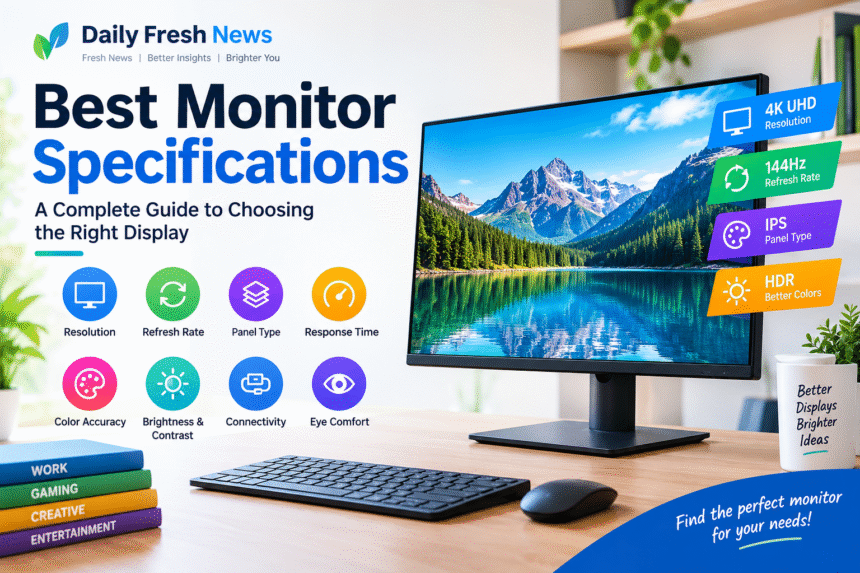
Choosing the right monitor can make a big difference in your daily computer experience. Whether you work from home, attend online classes, edit videos, play games, or browse the internet, the right display can improve comfort, productivity, and visual quality. However, with so many options available, understanding monitor specifications can feel confusing.
From screen resolution and refresh rate to panel types, response time, and connectivity, every specification serves a different purpose. This guide explains the best monitor specifications to consider before buying a new display.
1. Screen Resolution: Choose Clear and Sharp Visuals
Screen resolution refers to the number of pixels displayed on the screen. A higher resolution generally produces sharper images and clearer text, although the result also depends on screen size and pixel density.
Here are the most common monitor resolutions:
| Resolution | Pixel Count | Best For |
|---|---|---|
| Full HD (1080p) | 1920 × 1080 | Everyday tasks, office work, and budget gaming |
| QHD (1440p) | 2560 × 1440 | Gaming, multitasking, and productivity |
| 4K UHD | 3840 × 2160 | Video editing, design, and detailed visuals |
| 5K | 5120 × 2880 | Professional creative work and high-resolution content |
For most users, Full HD is sufficient for basic computing. However, a QHD monitor offers a useful balance between sharpness, performance, and price, especially on screens measuring 27 inches.
If you regularly edit photos, work with detailed graphics, or watch high-resolution content, a 4K monitor may be a better choice.
2. Refresh Rate: How Smooth Should Your Display Be?
Refresh rate measures how many times a monitor updates its image every second. It is measured in hertz (Hz).
A 60Hz monitor refreshes the image 60 times per second, while a 144Hz monitor refreshes it 144 times per second. Higher refresh rates can make movement look smoother and improve the overall responsiveness of compatible games and applications.
Common refresh rates include:
-
60Hz: Suitable for browsing, studying, office work, and everyday tasks.
-
75Hz to 100Hz: A good option for general use and casual gaming.
-
144Hz to 180Hz: Ideal for competitive gaming and smoother motion.
-
240Hz or higher: Best suited to competitive players who prioritize maximum motion clarity and responsiveness.
For ordinary office use, a 60Hz or 100Hz monitor is generally sufficient. Gamers who play fast-paced titles may benefit from a 144Hz or 180Hz display.
Remember that your computer must also be capable of producing enough frames per second to take full advantage of a high refresh rate.
3. Panel Type: IPS, VA, or OLED?
The panel type affects color reproduction, viewing angles, contrast, and response time. Understanding the differences can help you select a monitor that matches your needs.
IPS Panels
In-Plane Switching (IPS) monitors are popular for their consistent colors and wide viewing angles. They are suitable for office work, graphic design, photo editing, and general gaming.
IPS is a strong all-round choice for users who want balanced image quality.
VA Panels
Vertical Alignment (VA) panels generally offer higher native contrast than IPS panels, producing deeper blacks in many situations. They can be a good option for watching movies, enjoying dark scenes, and using a monitor in a dim room.
However, some VA displays show more dark-level smearing during fast movement.
OLED Panels
OLED monitors offer excellent contrast, deep blacks, fast pixel response, and vibrant image quality. They are attractive options for gaming, entertainment, and creative work.
Their disadvantages can include higher prices and the possibility of burn-in with prolonged display of static content.
Which panel should you choose? IPS is a practical choice for most people, VA works well for contrast-focused viewing, and OLED is worth considering if premium picture quality is a priority.
4. Response Time: Important for Fast-Moving Content
Response time measures how quickly a pixel changes from one color or shade to another. It is usually expressed in milliseconds (ms).
A lower response time can help reduce motion blur and ghosting, especially during fast-paced gaming. Many gaming monitors advertise response times of 1ms, but manufacturers may use different measurement methods.
For most office users, response time is not a major concern. Gamers should look for independent reviews that evaluate real-world pixel transitions rather than relying only on advertised specifications.
A monitor with a good combination of refresh rate, response time, and motion handling will generally provide a better gaming experience.
5. Screen Size and Aspect Ratio
Monitor size is measured diagonally in inches. The best size depends on your desk space, viewing distance, resolution, and the work you perform.
| Monitor Size | Recommended Use |
|---|---|
| 22 to 24 inches | Compact desks, office tasks, and budget gaming |
| 27 inches | Productivity, QHD gaming, and everyday use |
| 32 inches | 4K content, multitasking, and immersive gaming |
| 34 inches ultrawide | Video editing, wide spreadsheets, and multitasking |
Aspect ratio also matters. Most traditional monitors use a 16:9 aspect ratio, while ultrawide monitors often use 21:9.
A 16:9 monitor is suitable for most users because it works well with videos, games, and standard applications. Ultrawide displays provide extra horizontal space for multiple windows and complex workflows.
Before buying a larger monitor, check whether your desk can accommodate it comfortably.
6. Color Accuracy and Color Gamut
Color accuracy is especially important for photographers, designers, video editors, and other creative professionals.
Two specifications worth checking are color gamut and color accuracy.
Color gamut describes the range of colors a monitor can reproduce. Common standards include sRGB, DCI-P3, and Adobe RGB.
-
sRGB: Suitable for web design, general content creation, and everyday use.
-
DCI-P3: Useful for video editing and wide-gamut entertainment content.
-
Adobe RGB: Relevant to certain professional photography and print workflows.
Color accuracy is often measured using Delta E values. Lower values generally indicate smaller differences between intended and displayed colors, although results depend on the measurement conditions and calibration.
If you edit photos or create digital content professionally, look for a monitor with strong measured color accuracy and suitable factory calibration.
For ordinary browsing and office work, a standard monitor with good color reproduction is usually enough.
7. Brightness, Contrast, and HDR Support
Brightness is measured in nits, while contrast ratio compares the brightness of white and black displayed by a monitor.
A monitor with adequate brightness is easier to use in a well-lit room. Many general-purpose displays offer around 250 to 350 nits, although actual requirements depend on the environment.
Contrast is important for displaying differences between light and dark areas. VA and OLED displays often have advantages in dark-scene performance, while IPS performance varies by model.
High Dynamic Range (HDR) can improve the range of brightness and color in supported content. However, an HDR label alone does not guarantee a noticeable improvement.
If HDR matters to you, check peak brightness, contrast performance, local dimming capabilities, and independent reviews. A display with meaningful HDR performance can provide a better experience than a basic monitor that only advertises HDR compatibility.
8. Connectivity: HDMI, DisplayPort, and USB-C
A monitor’s ports determine which devices you can connect and which features you can use.
Important connectivity options include:
-
HDMI: Commonly used with desktops, laptops, gaming consoles, and streaming devices.
-
DisplayPort: Widely used for computer displays and high-refresh-rate gaming.
-
USB-C: Can carry video, data, and power when the monitor and connected device support the required features.
-
USB hub: Lets you connect accessories such as a keyboard, mouse, or external storage.
-
Audio output: Useful for connecting headphones or external speakers.
Check the supported version and capabilities of each port. Not every HDMI or USB-C connection supports the same resolution, refresh rate, or power delivery.
If you use a laptop, a USB-C monitor with sufficient power delivery can simplify your desk setup by reducing the number of cables you need.
9. Eye Comfort and Ergonomic Features
A good monitor should be comfortable to use for extended periods. Features such as flicker-free backlighting, a low-blue-light mode, and an adjustable stand can improve the overall experience.
Consider these features before making a purchase:
-
Height adjustment to position the screen at a comfortable level.
-
Tilt adjustment to reduce awkward viewing angles.
-
Swivel and pivot support for flexible positioning.
-
Anti-glare coating to reduce distracting reflections.
-
VESA mounting compatibility for monitor arms.
-
Built-in speakers or a webcam if you need an all-in-one workspace.
Eye comfort also depends on your environment and habits. Adjust brightness to match the room, avoid excessive reflections, and take regular breaks during long work sessions.
An adjustable stand is particularly useful because a monitor that cannot be positioned correctly may lead to uncomfortable posture.
10. Which Monitor Specifications Are Best for Different Users?
The best monitor is not necessarily the one with the highest specifications. It is the one that suits your budget, hardware, and everyday needs.
| User Type | Recommended Specifications |
|---|---|
| Office and students | 24-inch Full HD or QHD, 60Hz to 100Hz, adjustable stand |
| General home use | 24 to 27 inches, Full HD or QHD, IPS panel |
| Competitive gamers | QHD, 144Hz to 240Hz, low real-world response time |
| Casual gamers | Full HD or QHD, 100Hz to 180Hz, Adaptive-Sync support |
| Graphic designers | 27-inch QHD or 4K, IPS or OLED, accurate colors |
| Video editors | 27 to 32 inches, 4K, wide color gamut, good calibration |
| Programmers | 27-inch QHD or 4K, sharp text, ergonomic adjustment |
| Entertainment enthusiasts | 27 to 32 inches, strong contrast, suitable HDR performance |
These are general recommendations rather than strict requirements. Your computer’s graphics capabilities, available desk space, and preferred applications should also influence your choice.
11. Common Mistakes to Avoid When Buying a Monitor
Even an expensive monitor can be a poor purchase if its specifications do not match your needs. Avoid these common mistakes:
Choosing resolution without considering screen size: Full HD can work well on smaller displays, but QHD or 4K may provide sharper text on larger screens.
Focusing only on refresh rate: A high refresh rate does not automatically mean excellent color quality, contrast, or response time.
Ignoring port compatibility: Confirm that your computer supports the monitor’s required resolution and refresh rate through the connection you plan to use.
Trusting HDR labels without checking performance: Real HDR quality depends on several factors, not simply the presence of an HDR setting.
Overlooking ergonomics: A height-adjustable stand can be more valuable for everyday comfort than an unnecessary premium feature.
Buying more than you need: If you mainly browse websites and write documents, you may not need a premium gaming or professional editing monitor.
Conclusion
Understanding the best monitor specifications makes it easier to find a display that balances image quality, performance, comfort, and price. Resolution determines image detail, refresh rate influences motion smoothness, panel type affects colors and contrast, and connectivity determines how easily the monitor fits into your setup.
For most users, a 27-inch QHD IPS monitor with a 100Hz to 144Hz refresh rate is a versatile option for work, entertainment, and casual gaming. Competitive gamers may prefer higher refresh rates, while creative professionals should prioritize resolution, color accuracy, and calibration.
Before purchasing, compare real-world reviews, check compatibility with your computer, and focus on the features you will actually use. A well-chosen monitor can serve you comfortably for years without requiring you to pay for specifications you do not need.